My Personal Fave Five
I’ve talked about a lot of different tools and apps, but which are the best? That’s going to be highly personal, according to your needs and preferences as an educator. However, here are MY current top 5, and I recommend at least giving them a whirl!
#1 Canva
You probably don’t need me to tell you about Canva, the ubiquitous online graphic design tool. They have so many art assets, a lot of great free templates, and offer free premium accounts to educators. Canva is known for being intuitive and easy to use; the graphic design tool for people who are decidedly not graphic designers. While many professional graphic designers will eschew Canva, opting for Adobe Illustrator and the like, for those of us who aren’t creating original art to sell it’s a great option. Fast, pretty, and easy.
The downside? You’ll start recognizing flyer templates and individual illustrations in the wild, and feel a bit like a sham.
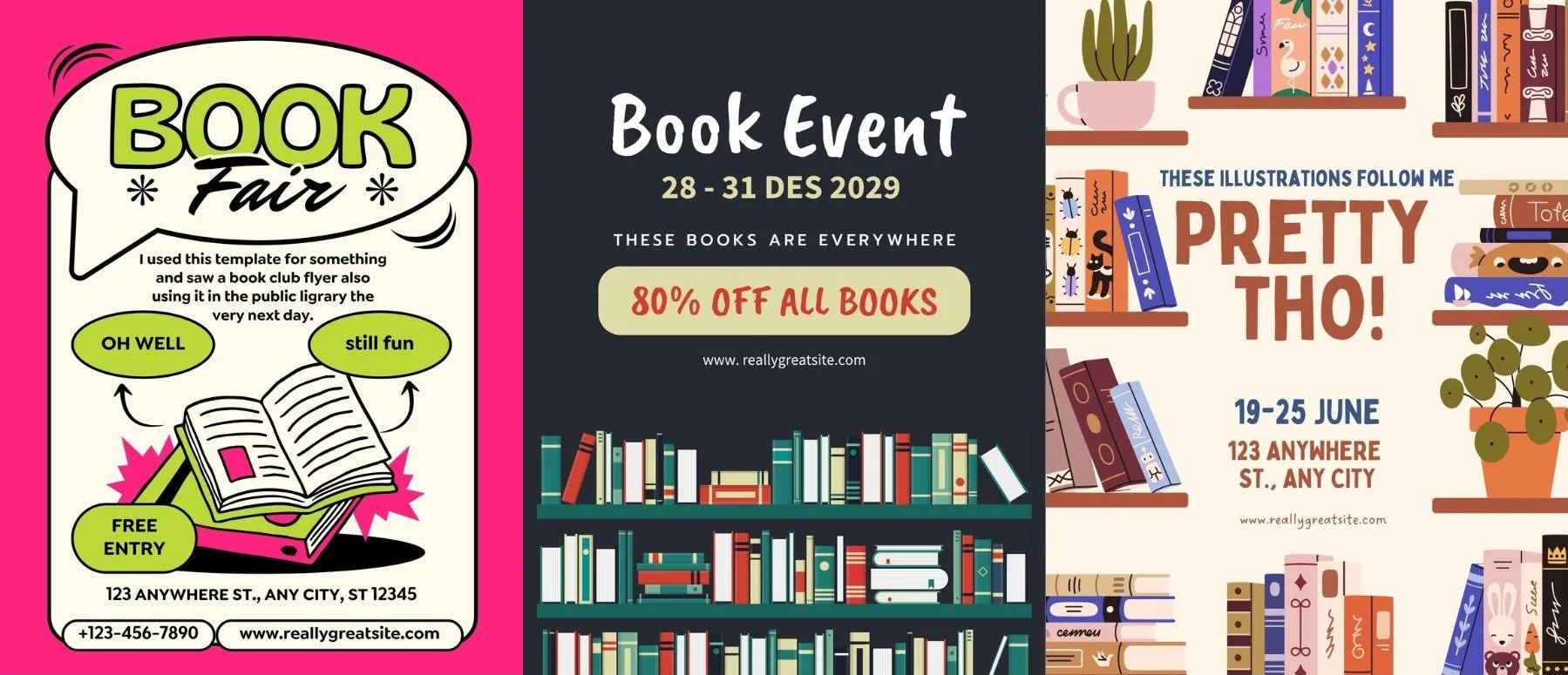
Look familiar?
#2 Figma (specifically FigJam)
Speaking of graphic design, Figma is a platform mostly known for creating websites, mockups, mobile apps, and allowing design teams to work collaboratively.
I, however, have yet to use the main platform. Today I’m talking about what might be my new favorite thing on the internet: FigJam,
I had been trying to think of how to take an analog activity digital (to make it more collaborative, accessible, and fit the requirements for a course). I tried messing around with Kami, mindmapping tools, padlet, even considered Trello. None of it was as flexible or as visual as I wanted it to be. In a fit of anguish, I turned to Gemini. I explained the lesson and what I wanted the activity to do, and asked what tools would best do what I wanted. The first result was FigJam, which I had never tried before, and it was perfect.
It’s described as an “online collaborative whiteboard.” Setting it up feels a little like working in Prezi - there’s an infinite canvas, you can zoom way in or way out, and you create potentially interconnected zones, or sections. You can lock elements down and then invite students to the space. The activity I created has students using sticky notes to generate as many questions as possible about an article. The sticky notes will automatically label whoever created them. You can then move them around, change colors, etc.
This activity is an adapted form of the Question Formulation Technique, and involves the following steps:
Write as many questions as possible,
Sort those questions into closed questions and open questions.
Transform open questions into closed ones, and vice versa.
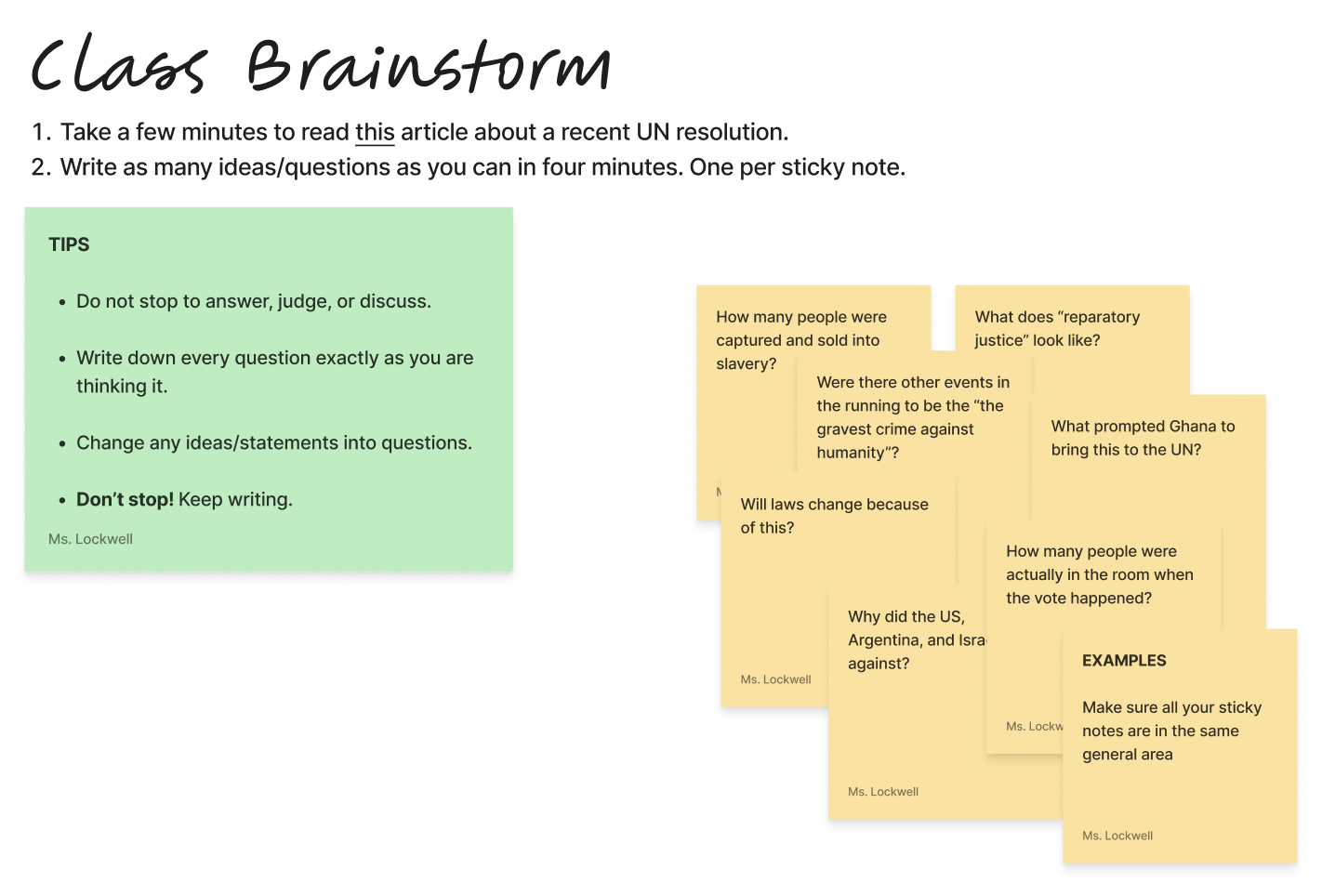
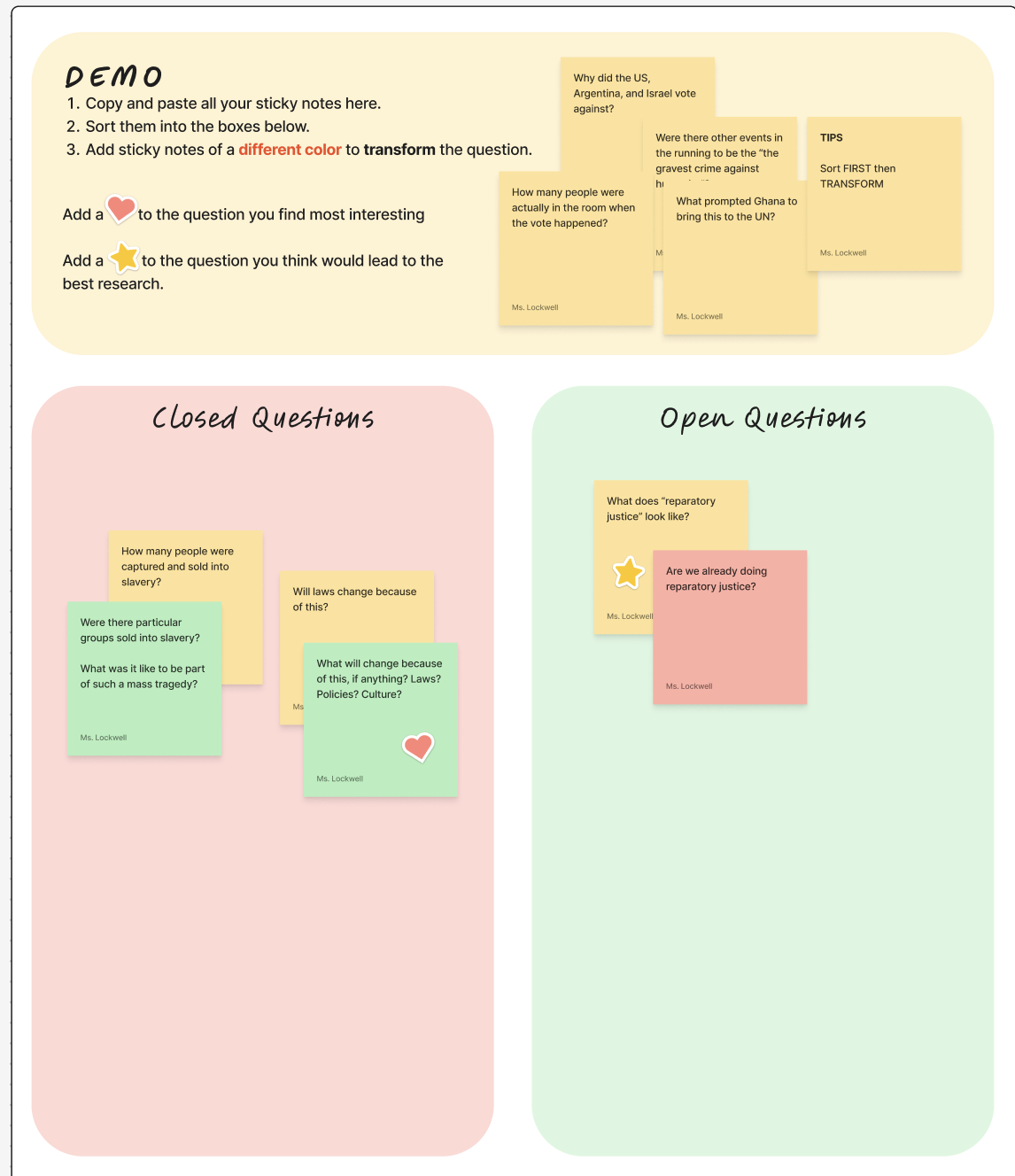
You should be able to play in this space here.
I loved how FigJam made it possible to move things around freely, just like you would on an actual whiteboard, but students maintained authorship of their sticky notes and you would be able to project it on the screen so everyone could actually see at once instead of crowding around. You can also add stamps, shapes, and comments. There’s even an option to play different sorts of music while people are in the program. There’s something special about analog, but this did replicate some of that feeling.
The point is, I may now be using FigJam for my own note-taking, mind mapping, and organizing. It’s flexible, easy, and
#3 Google Suite
Listen. I sort of hate that I have a whole group of interconnected apps from a huge corporation, arguably an unethical monopoly machine, on this list.
But I just can’t deny that the interconnectedness, the ease of use, the very fact that Google products are everywhere, makes these products some of the most accessible and powerful out there.
Unfortunately, my favorite part is the very thing that makes me cringe when I take a step back: everything syncs and you can just stay in the Google universe.
Let’s say you’ve linked up your google drive with Gemini. You can give it a lesson plan in a Google Doc and student response data that’s been collected via Google Forms into a Google Sheet, and have it create you a summary of how the lesson hit and suggest what to improve. You can then make slides in Google Slides, a worksheet in Google Docs (although ok, I would use Canva, but that’s just me), and attach them both as assignments in Google Classroom. Oh, and because it’s all part of the Google School package, you know (...slash hope) your student’s data is safe. Select all your students, send them messages through school Gmail, and call it a day.
At this point I do most of my own school and personal work in Google Docs, Google Slides, and Google Sheets (...and Canva).
#4 NoodleTools
Oh, NoodleTools. Students hate you, teachers love you, and I think you’re pretty great.
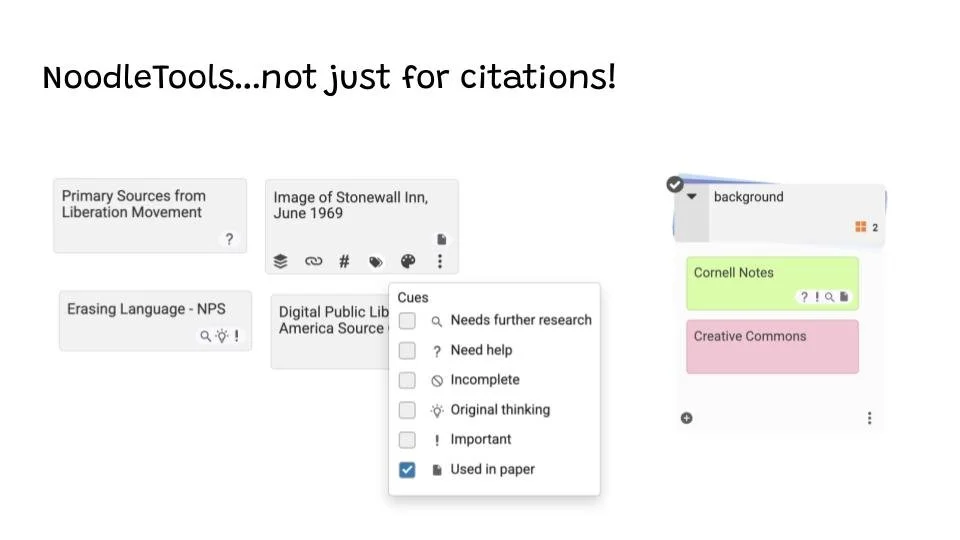
It’s mostly billed as a citation builder, but I think the real value comes in using it to take notes, organize citations, and outline projects. I guess I just really like a digital sticky note/index card situation?
#5 Pixton
I wrote about this in another blog post so I won’t belabor the point:
If you haven’t tried it, take some time to check out Pixton!
Pixton was designated as one of the 7 best digital tools for teaching and learning by the American Association of School Librarians (AASL) for 2026 for a reason. It’s also just really fun! This platform allows students to create characters, write dialogue, and sequence panels, all without needing to draw. I would never want it to discourage a comic maker from learning to draw, but I can see it being an excellent way of making visual storytelling accessible to many people who have written it off as not for them.