More Apps!
Some of these I have used extensively, some I have only just started exploring, but here is a list of 10 applications and their potential application (heh) in a school library. They are sorted into four categories*:
Interactive Presentations & Quick Assessment
Modality, Voice, & Accessibility
Creative Communication & Digital Expression
Research Powerhouse (just one app, but it’s a good one!).
1: Interactive Presentations & Quick Assessment
Tools to hook students during short library drop-ins, gather data, or lightly gamify a quick lesson.
Peardeck
Peardeck works with Google Slides to allow students to interact directly with a slide. You can insert dynamic slides where students draw their answers, slide a draggable icon across a spectrum, or type a quick response. As the teacher, you get an immediate dashboard view of where everyone is at. Peardeck also offers a lot of different templates and lesson plans, which I find extremely helpful. Teachers say that this tool fosters engagement, and allows them to quickly assess comprehension. In a library context, I can see this being useful for any kind of lesson. In particular, I think it could be a good way to spruce up a lesson on citation and bibliography, or as a primer for a library scavenger hunt. I am imagining, for example, a map of the library and students identifying where they think they would find a particular kind of book.
Mentimeter
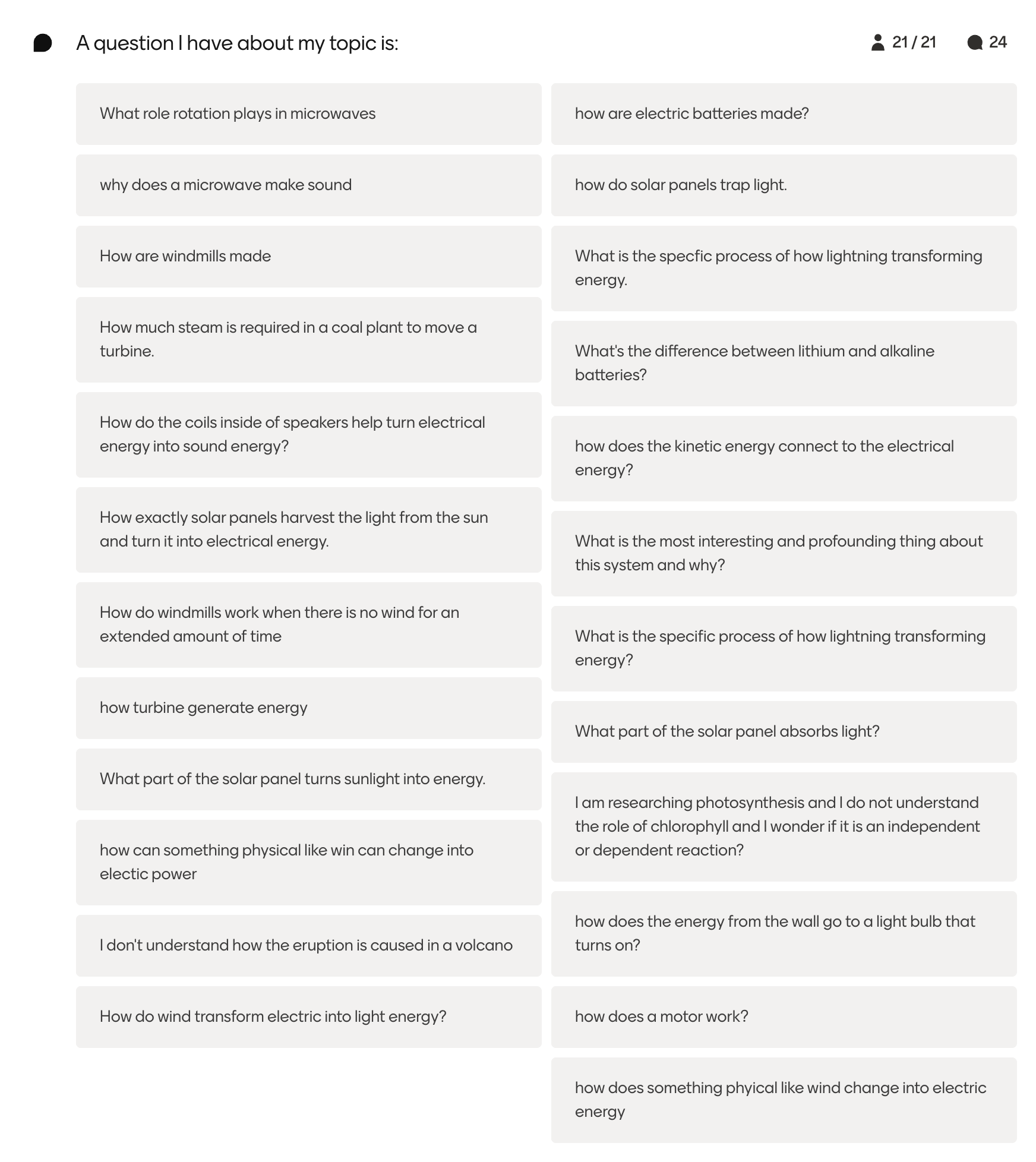
Mentimeter is another app that helps you create interactive presentations. Its strength is in-the-moment data visualization, and is fun for creating word clouds, polls, etc. I used this during my practicum, during a collaborative lesson in 9th grade physics, to gather all the different kinds of questions students had about their research topics. It was great to be able to see them all together, and leave them up on the projector while they continued their research.
Google Forms
Ok, so this is not an app that I extensively explored for this assignment in particular, but it felt impossible not to include it when talking about quick assessments. It’s not the most interactive way of gathering information, perhaps, but oh-so-simple and flexible. They are incredibly straight forward, and results are easily viewed right in the app, or exported to a google sheet.
In my district, Google Forms has also become a major part of social studies assessments. There is an option to “lock down” a google form - meaning once the form is open, the students aren’t able to open any other Chrome tabs. Of course this only works if the student’s only browser option is Chrome. We have a cart of chromebooks in the library that is lent out to classrooms explicitly for assessment. For the social studies teachers that use them the most frequently, it’s become a great way to cut down on cheating and AI use while still allowing students to use their computer.
2: Modality, Voice, & Accessibility
Tools that dismantle barriers to reading and writing, giving students choice in how they learn and express themselves.
Mote
Mote is an assistive technology platform that offers speech-to-text, read aloud, screen masking, and voice memos in a variety of forms. Using the platform allows you or a student to read and mark up pdfs, and the chrome extension enables a sidebar that integrates with most Google applications. I was initially interested in Mote as a way to leave voice comments as feedback within google docs, or as a way for students to complete assignments orally. At my district, the library has been creating “project logs” to go along with collaborative research projects, as a way to help scaffold research and help students reflect on the process. They work well, but one of the downfalls is how reliant they are on reading and writing. Mote would allow students to reflect via discussion, rather than writing, which could work better for a lot of learners. I also like the idea of doing a mini-lesson on Mote, so students know a little bit more about different ways they can engage with material.
I think Mote has a lot of promise, but I will say that full implementation likely requires working with the district-wide tech team. I believe they have since fixed the glitch, but when I was trying it out the plugin interfered with my school chrome profile and stripped many websites of their formatting. Still, worth a look!
Kami
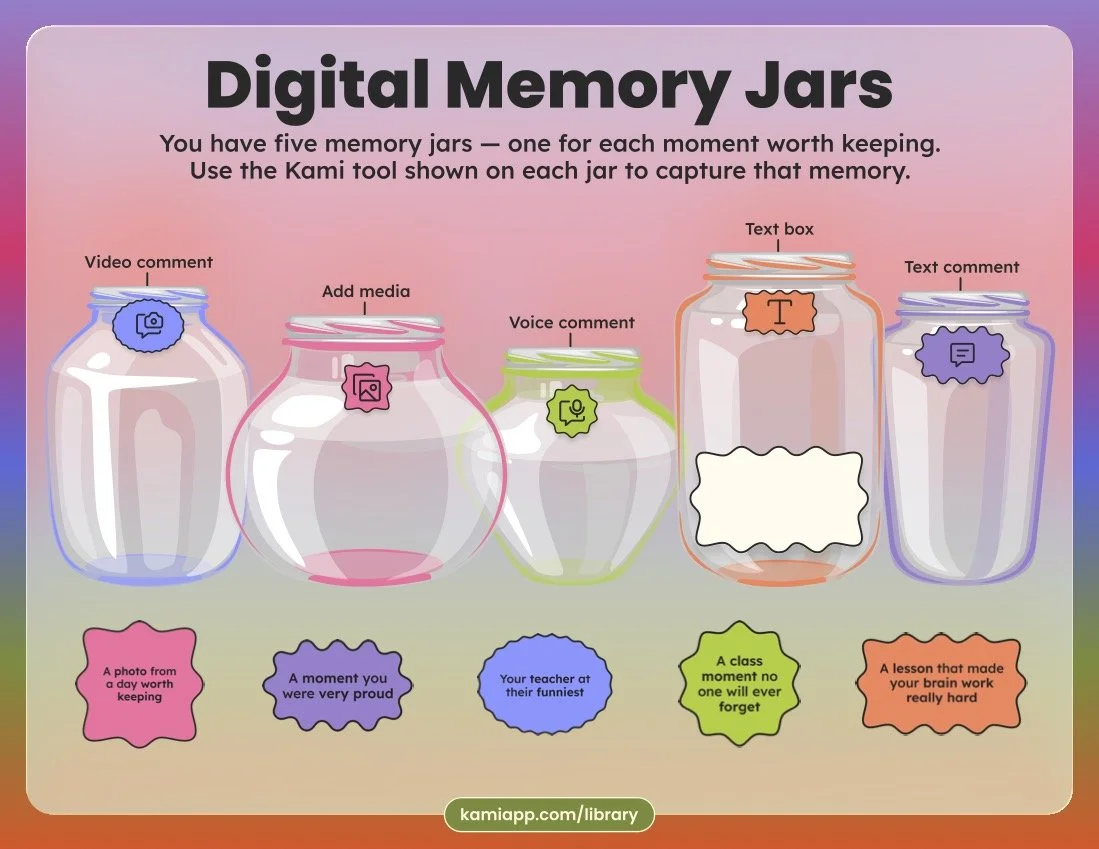
Kami is an app that my district subscribes to, but that I have not personally used. In playing around with it, I think that’s gotta change! This feels like a great way to create worksheets and note-taking tools like research project logs. I do love the simplicity of a google doc, but the multiple ways of doing work AND leaving feedback (voice, drawing, highlight, typing) make me think that Kami might be worth the learning curve. At the high school level it can be a little tricky, because as a librarian you are not often seeing students regularly in a classroom setting. So unless they already know how to use Kami, it might not be the best tool for a drop-in lesson. On the other hand, it’s likely they have already used it with other teachers, and it seems pretty intuitive once the tool is created. If teaching a digital literacy class, or seeing students regularly, it’s easier to set expectations and I think mini-lesson setting students to use the platform would be a great thing to do in the beginning of a class. There are, for example, templates that walk students through learning the different features. I am particularly fond of this memory jar slide, where students capture memories in five different ways (video comment, adding external media, voice comment, text box, and text comment).
printfriendly.com
Printfriendly is another app that I love as a browser extension. While it is able to manipulate pdfs in different ways, in my opinion it’s the webpage tools that really shine. Formats that make sense on a website, don’t always translate to print. Printfriendly allows you to print webpages in a way that is entirely customizable and clear of clutter. This app allows you to delete extraneous sections (e.g. ads), change the size of text and images, and even highlight/edit as you see fit. The level of granularity and control is pretty cool. You can now print webpages in a way that is, well, friendly!
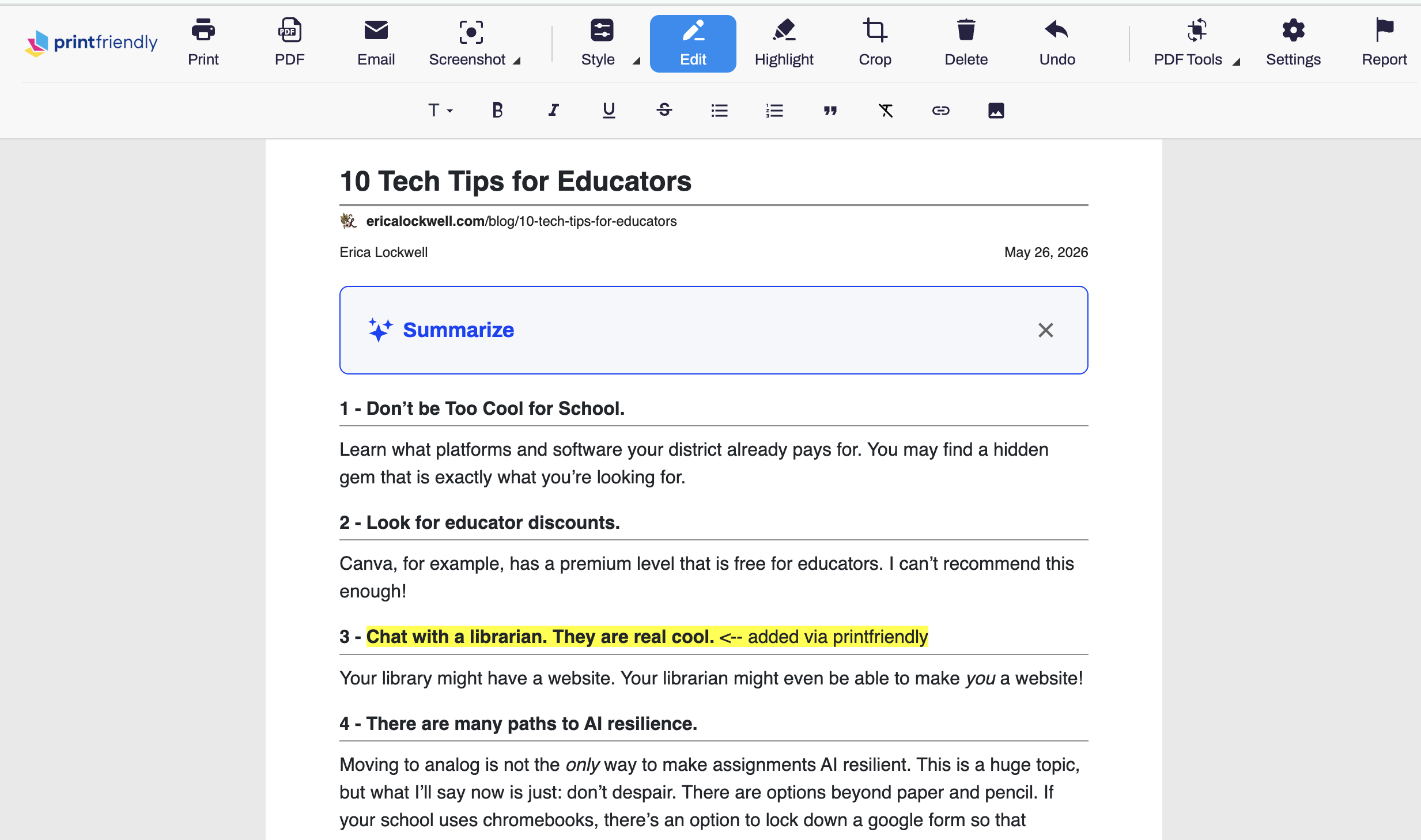
This has proven especially useful when printing tutorials for our craft table (always with credit, of course). I can also see this tool being useful for making all sorts of blogs and news articles more accessible and shareable for class use - whether that be printed on actual paper or saved as a pdf.
3: Creative Communication & Digital Expression
Tools that lean into visual storytelling and personal branding to make digital spaces inviting.
Bitmoji

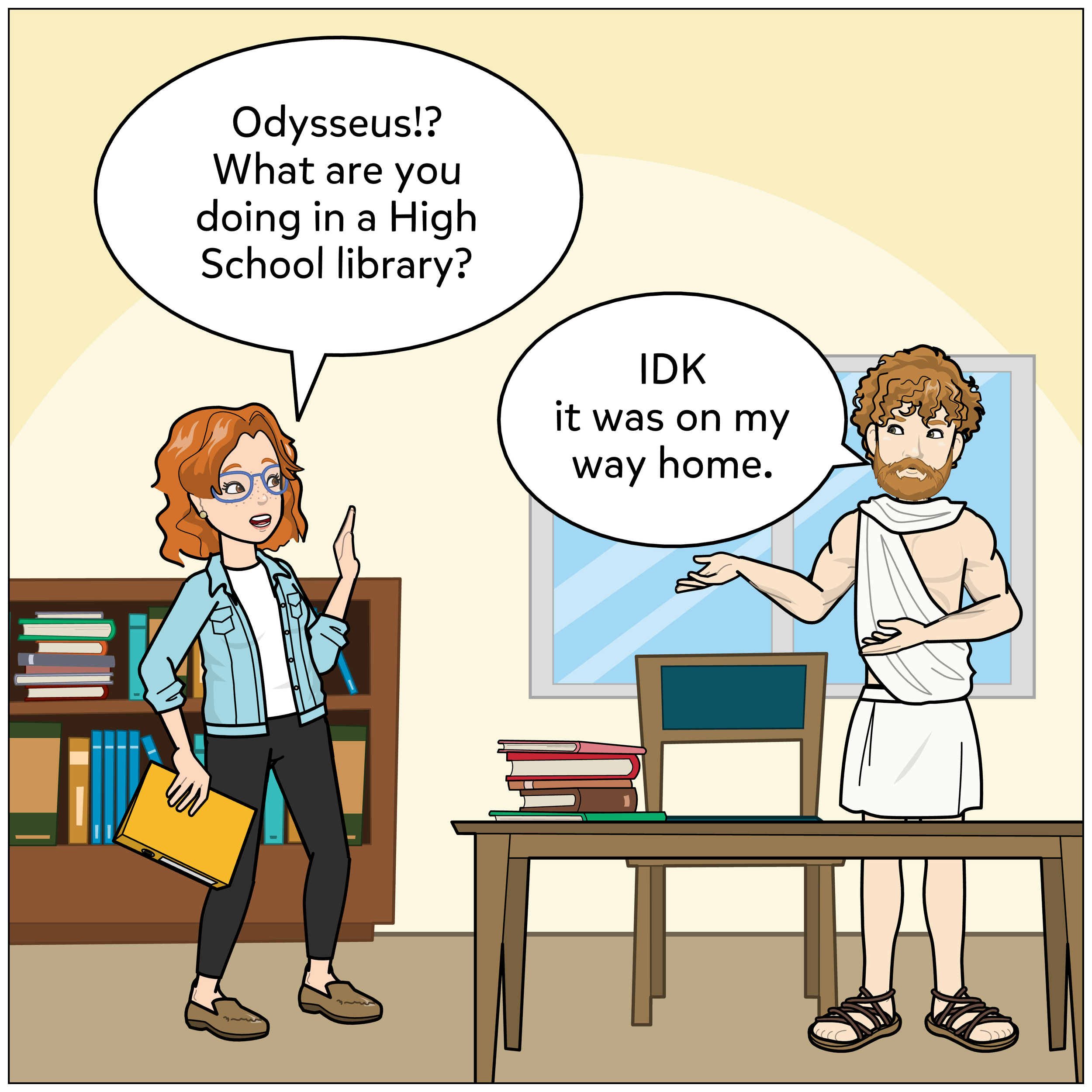
A classic for a reason! Does bitmoji even need introduction? This is such a fun way to make images a little more personal - especially in slides or videos. Essentially, you customize an avatar and then can download images of “you” in all sorts of different poses/messages.
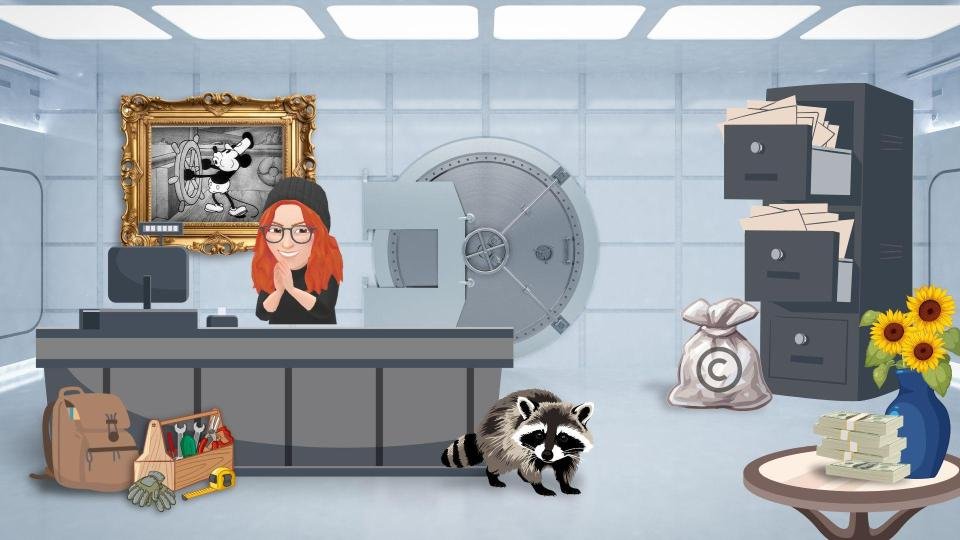
For one of my previous classes at SSU, we were tasked with creating a digital escape room. I chose a heist theme, and had a lot of fun customizing and then choosing the perfect bitmoji.
Pixton
Pixton was designated as one of the 7 best digital tools for teaching and learning by the American Association of School Librarians (AASL) for 2026, and I can see why! Pixton allows students to create characters, write dialogue, and sequence panels, all without needing to draw. Effective use of Pixton has been shown to improve grammar, vocabulary, writing, and critical thinking.
I really like that you can assign specific activities, and there are a ton of lesson ideas and writing prompts available. Pixton also comes with a suite of literary characters set up, which is pretty fun! I can see students getting quite involved with Pixton, making characters and telling stories.
Canva
This is another app not new to me, but I would be remiss not to mention it. In the library, we use it for signage, presentations, reports, you name it. I have also seen students use it for various class projects, and it really does have a wide variety of features.
What is new to me is using Canva to create video. In the past few weeks, Jen (my supervisor) and I created videos to promote summer reading and had a blast. It was relatively intuitive, we had access to all the assets we used in the pdf guide, and were able to embed the videos directly onto our library website. There is a large array of royalty free music, and picked tracks that matched the mood of each book we were highlighting. We were able to voice record right in the app, and got teachers to introduce a few of the different titles. We originally were going to have teachers send us bitmojis (shout out bitmoji), but not all teachers had it set up. Jen ended up asking for a photo (or taking one on the spot), and running it through ChatGPT to make cartoon versions of the teachers all in a similar style. We did have one teacher decline to be involved, because she was uncomfortable with her image being fed to ChatGPT, which we understood. Between the videos and the guide itself, Summer Reading promotion ended up being our favorite creation of the year.
Summer Reading High School (Video) by Weston School Libraries (HS/MS)
4: The Research Powerhouse
The heavy hitter for long-term academic success.
Noodletools
Oh, Noodletools. Besides Canva, this is that app that I probably have the most experience with, and definitely have the most experience teaching. It is a robust citation manager tool that can, if used correctly, make the research process so much smoother.
While I think there’s an argument to be made for teaching students to use something like MyBib, which can feel a little less cumbersome, NoodleTools really can do so much more. From a teaching standpoint, I like that it breaks down the different pieces of information you need for a citation. This teaches students to think about what to look for, rather than taking an auto-generated citation at face value. Teachers can also set up a class inbox, and check on student progress (as well as leave comments). Many of our databases also will allow you to export the citation directly to Noodletools, and it also just has so many more features than a free citation generator. It can help not just cite work, but also keep resources organized through tags, icons, and color coding. I especially love that you can create notecards, and I highly encourage students to take full advantage of this feature. The notecards are divided so you can take different kinds of notes (quotes/paraphrase/your own thoughts). They remain associated with a specific source, but you can move them around as you’re thinking about how to organize the final product.
*AI Alert: I wrote all of the actual content of this post, but I did ask Gemini to help me figure out how to group the apps. I kept its categories and only lightly edited the category descriptions. I find it’s pretty good at this kind of topical grouping, and I feel less weird about using Gemini than a lot of other LLMs. I already have access to it through my district, and I know it isn’t using my data for training due to educational restrictions.